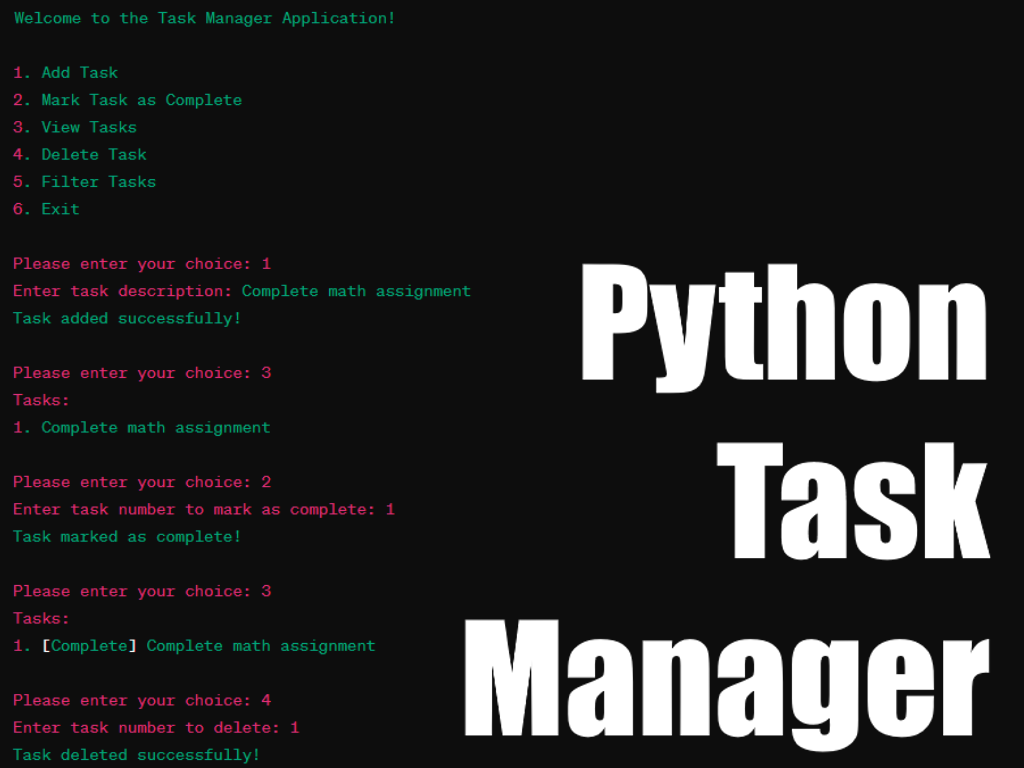
Python Task Manager
November 2024
A basic Task Manager made in Python.
Project Overview
A lightweight, command-line based task management application built in Python. This simple tool allows users to add, view, complete, delete, and filter tasks with ease—perfect for basic to-do tracking directly from your terminal.
Python Task Manager is a beginner-friendly, functional command-line tool for managing personal tasks. It features task addition, completion toggling, viewing all tasks, deletion, and basic filtering—all stored in a temporary in-memory list for quick usage without external dependencies.
- Tasks are stored in a list of dictionaries like:
- {"task": "Buy groceries", "completed": False}
- A while True loop shows the menu and handles user input via numbered options.
- add_task() → prompts user input and appends to the list
- mark_task_complete() → allows marking tasks by index
- view_tasks() → prints all tasks with status
- delete_task() → removes task by number
- filter_tasks() → displays only completed/incomplete tasks
In-Memory Storage
Menu System
Function Breakdown
Project Features
- ➕ Add new tasks with simple input
- ✅ Mark tasks as complete via index selection
- 👀 View all tasks with completion status
- ❌ Delete tasks using task number
- 🔎 Filter by completed or incomplete status
- 🖥️ Console-based interface—simple and effective
Project User Workflow
- Run the script
-
Choose an option from the main menu:
1 --- Add a task
2 --- Mark a task as complete
3 --- View all tasks
4 --- Delete a task
5 --- Filter by task status
6 --- Exit the program
- Interact with tasks through simple input
- Exit anytime and start fresh next time (no persistent storage)
Technologies Used
- 🐍 Python 3 (No external libraries needed)
Project Images
Welcome to the Task Manager Application!
1. Add Task
2. Mark Task as Complete
3. View Tasks
4. Delete Task
5. Filter Tasks
6. Exit
Please enter your choice: